> ## Documentation Index
> Fetch the complete documentation index at: https://ampersand-24eb5c1a-rajatspawar-eng-4113-slack-docs.mintlify.site/llms.txt
> Use this file to discover all available pages before exploring further.

# Zoho

The Zoho connector supports the following Zoho products:

* Zoho CRM (default)
* Zoho Desk
* Zoho Mail

## Zoho CRM

### Supported Actions

This connector supports:

* [Read Actions](/read-actions), including full historic backfill and incremental read.
* [Write Actions](/write-actions).
* [Proxy Actions](/proxy-actions), using the base URL `https://www.zohoapis.com`.
* [Subscribe Actions](/subscribe-actions).

### Supported Objects

export const Check = () => <span>✅</span>;
export const Cross = () => <span>🚫</span>;

<div style={{ width: '100%', overflowX: 'auto' }}>
  <table style={{ width: '100%', minWidth: '100%', tableLayout: 'fixed', textAlign: 'center', borderCollapse: 'collapse' }}>
    <thead>
      <tr style={{ width: '100%' }}>
        <th style={{ textAlign: 'left', width: '40%' }}>Object</th>
        <th style={{ width: '20%' }}>Read</th>
        <th style={{ width: '20%' }}>Write</th>
        <th style={{ width: '20%' }}>Subscribe</th>
      </tr>
    </thead>

    <tbody>
      <tr><td style={{ textAlign: 'left' }}>Leads</td><td><Check /></td><td><Check /></td><td><Check /></td></tr>
      <tr><td style={{ textAlign: 'left' }}>Accounts</td><td><Check /></td><td><Check /></td><td><Check /></td></tr>
      <tr><td style={{ textAlign: 'left' }}>Contacts</td><td><Check /></td><td><Check /></td><td><Check /></td></tr>
      <tr><td style={{ textAlign: 'left' }}>Deals</td><td><Check /></td><td><Check /></td><td><Check /></td></tr>
      <tr><td style={{ textAlign: 'left' }}>Campaigns</td><td><Check /></td><td><Check /></td><td><Check /></td></tr>
      <tr><td style={{ textAlign: 'left' }}>Tasks</td><td><Check /></td><td><Check /></td><td><Check /></td></tr>
      <tr><td style={{ textAlign: 'left' }}>Cases</td><td><Check /></td><td><Check /></td><td><Check /></td></tr>
      <tr><td style={{ textAlign: 'left' }}>Events</td><td><Check /></td><td><Check /></td><td><Cross /></td></tr>
      <tr><td style={{ textAlign: 'left' }}>Meetings</td><td><Cross /></td><td><Cross /></td><td><Check /></td></tr>
      <tr><td style={{ textAlign: 'left' }}>Calls</td><td><Check /></td><td><Check /></td><td><Check /></td></tr>
      <tr><td style={{ textAlign: 'left' }}>Solutions</td><td><Check /></td><td><Check /></td><td><Check /></td></tr>
      <tr><td style={{ textAlign: 'left' }}>Products</td><td><Check /></td><td><Check /></td><td><Check /></td></tr>
      <tr><td style={{ textAlign: 'left' }}>Vendors</td><td><Check /></td><td><Check /></td><td><Check /></td></tr>
      <tr><td style={{ textAlign: 'left' }}>Price Books</td><td><Check /></td><td><Check /></td><td><Check /></td></tr>
      <tr><td style={{ textAlign: 'left' }}>Quotes</td><td><Check /></td><td><Check /></td><td><Check /></td></tr>
      <tr><td style={{ textAlign: 'left' }}>Sales Orders</td><td><Check /></td><td><Check /></td><td><Check /></td></tr>
      <tr><td style={{ textAlign: 'left' }}>Purchase Orders</td><td><Check /></td><td><Check /></td><td><Check /></td></tr>
      <tr><td style={{ textAlign: 'left' }}>Invoices</td><td><Check /></td><td><Check /></td><td><Check /></td></tr>
      <tr><td style={{ textAlign: 'left' }}>Appointments</td><td><Check /></td><td><Check /></td><td><Check /></td></tr>
      <tr><td style={{ textAlign: 'left' }}>Appointments Rescheduled History</td><td><Check /></td><td><Check /></td><td><Check /></td></tr>
      <tr><td style={{ textAlign: 'left' }}>Services</td><td><Check /></td><td><Check /></td><td><Check /></td></tr>
      <tr><td style={{ textAlign: 'left' }}>Custom</td><td><Check /></td><td><Check /></td><td><Check /></td></tr>
      <tr><td style={{ textAlign: 'left' }}>Users</td><td><Check /></td><td><Check /></td><td><Cross /></td></tr>
    </tbody>
  </table>
</div>

### Example Integration

For an example manifest file of a Zoho CRM integration, visit our [samples repo on GitHub](https://github.com/amp-labs/samples/blob/main/zoho/crm/amp.yaml).

## Zoho Desk

### Supported Actions

This connector supports:

* [Read Actions](/read-actions), including full historic backfill and incremental read for most objects.
* [Write Actions](/write-actions).

### Supported Objects

The Zoho connector allows you to read from and write to these objects:

* [organizations](https://desk.zoho.com/DeskAPIDocument#Organizations#Organizations_Getallorganizations)
* [agents](https://desk.zoho.com/DeskAPIDocument#Agents#Agents_Listagents)
* [profiles](https://desk.zoho.com/DeskAPIDocument#Profiles#Profiles_Listprofiles)
* [roles](https://desk.zoho.com/DeskAPIDocument#Roles#Roles_Listroles)
* [departments](https://desk.zoho.com/DeskAPIDocument#Departments#Departments_Listdepartments)
* [channels](https://desk.zoho.com/DeskAPIDocument#Channels#Channels_Listconfiguredchannels)
* [tickets](https://desk.zoho.com/DeskAPIDocument#Tickets)
* [contacts](https://desk.zoho.com/DeskAPIDocument#Contacts#Contacts_Listcontacts)
* [accounts](https://desk.zoho.com/DeskAPIDocument#Accounts#Accounts_Listaccounts)
* [tasks](https://desk.zoho.com/DeskAPIDocument#Tasks#Tasks_Gettask)
* [products](https://desk.zoho.com/DeskAPIDocument#Products#Products_Listproducts)
* [helpCenters](https://desk.zoho.com/DeskAPIDocument#HelpCenter#HelpCenter_Listhelpcenters)
* [users](https://desk.zoho.com/DeskAPIDocument#Users#Users_Listhelpcenterusers)
* [labels](https://desk.zoho.com/DeskAPIDocument#Labels#Labels_Listlabels)
* [groups](https://desk.zoho.com/DeskAPIDocument#Groups#Groups_Listgroups)
* [articles](https://desk.zoho.com/DeskAPIDocument#Articles#Articles_Listarticles)
* [articleFeedbacks](https://desk.zoho.com/DeskAPIDocument#ArticleFeedback#ArticleFeedback_Listfeedbackcomments)
* [kbRootCategories](https://desk.zoho.com/DeskAPIDocument#KBCategory#KBCategory_Listrootcategories)
* [contracts](https://desk.zoho.com/DeskAPIDocument#Contracts#Contracts_Listallcontracts)
* [ticketTemplates](https://desk.zoho.com/DeskAPIDocument#TicketTemplates#TicketTemplates_Listtickettemplates)
* [calls](https://desk.zoho.com/DeskAPIDocument#Calls#Calls_Listcalls)
* [events](https://desk.zoho.com/DeskAPIDocument#Events#Events_Listevents)
* [organizationModules](https://desk.zoho.com/DeskAPIDocument#Modules#Modules_GetAllModules)
* [languages](https://desk.zoho.com/DeskAPIDocument#Locales#Locales_Listalllanguages)
* [countries](https://desk.zoho.com/DeskAPIDocument#Locales#Locales_Listallcountries)
* [timeZones](https://desk.zoho.com/DeskAPIDocument#Locales#Locales_Listalltimezones)
* [businessHours](https://desk.zoho.com/DeskAPIDocument#Businesshours#Businesshours_Listbusinesshoursets)
* [domains](https://desk.zoho.com/DeskAPIDocument#DomainMapping#DomainMapping_Listdomains)
* [holidayList](https://desk.zoho.com/DeskAPIDocument#HolidayList#HolidayList_Listholidaylists)
* [im/channels](https://desk.zoho.com/DeskAPIDocument#IMChannel#IMChannel_ListChannels)
* [im/sessions](https://desk.zoho.com/DeskAPIDocument#IMSession#IMSession_ListSessions)

### Example Integration

For an example manifest file of a Zoho Desk integration, visit our [samples repo on GitHub](https://github.com/amp-labs/samples/blob/main/zoho/desk/amp.yaml).

## Zoho Mail

### Supported Actions

This connector supports:

* [Read Actions](/read-actions), including full historic backfill. Please note that incremental read is not supported, a full read of the Zoho Mail instance will be done for each scheduled read.
* [Write Actions](/write-actions).

### Supported Objects

<div style={{ width: '100%', overflowX: 'auto' }}>
  <table style={{ width: '100%', minWidth: '100%', tableLayout: 'fixed', textAlign: 'center', borderCollapse: 'collapse' }}>
    <thead>
      <tr style={{ width: '100%' }}>
        <th style={{ textAlign: 'left', width: '40%' }}>Object</th>
        <th style={{ width: '30%' }}>Read</th>
        <th style={{ width: '30%' }}>Write</th>
      </tr>
    </thead>

    <tbody>
      <tr><td style={{ textAlign: 'left' }}><a href="https://www.zoho.com/mail/help/api/get-all-users-accounts.html"><code>accounts</code></a></td><td><Check /></td><td><Cross /></td></tr>
      <tr><td style={{ textAlign: 'left' }}><a href="https://www.zoho.com/mail/help/api/get-all-folder-details.html"><code>accounts/folders</code></a></td><td><Check /></td><td><Check /></td></tr>
      <tr><td style={{ textAlign: 'left' }}><a href="https://www.zoho.com/mail/help/api/get-all-label-details.html"><code>accounts/labels</code></a></td><td><Check /></td><td><Check /></td></tr>
      <tr><td style={{ textAlign: 'left' }}><a href="https://www.zoho.com/mail/help/api/get-all-collections.html"><code>collections</code></a></td><td><Check /></td><td><Check /></td></tr>
      <tr><td style={{ textAlign: 'left' }}><a href="https://www.zoho.com/mail/help/api/get-custom-status-of-task.html"><code>customStatus</code></a></td><td><Check /></td><td><Check /></td></tr>
      <tr><td style={{ textAlign: 'left' }}><a href="https://www.zoho.com/mail/help/api/get-all-group-collections-api.html"><code>groups/collections</code></a></td><td><Check /></td><td><Cross /></td></tr>
      <tr><td style={{ textAlign: 'left' }}><a href="https://www.zoho.com/mail/help/api/get-all-bookmarks.html"><code>links</code></a></td><td><Check /></td><td><Cross /></td></tr>
      <tr><td style={{ textAlign: 'left' }}><a href="https://www.zoho.com/mail/help/api/get-all-favorite-bookmarks-api.html"><code>links/favorites</code></a></td><td><Check /></td><td><Cross /></td></tr>
      <tr><td style={{ textAlign: 'left' }}><a href="https://www.zoho.com/mail/help/api/get-all-link-groups.html"><code>links/groups</code></a></td><td><Check /></td><td><Cross /></td></tr>
      <tr><td style={{ textAlign: 'left' }}><a href="https://www.zoho.com/mail/help/api/get-all-bookmarks.html"><code>links/me</code></a></td><td><Check /></td><td><Check /></td></tr>
      <tr><td style={{ textAlign: 'left' }}><a href="https://www.zoho.com/mail/help/api/get-all-bookmarks-in-trash-api.html"><code>links/trash</code></a></td><td><Check /></td><td><Cross /></td></tr>
      <tr><td style={{ textAlign: 'left' }}><a href="https://www.zoho.com/mail/help/api/get-emails-list.html"><code>messages</code></a></td><td><Check /></td><td><Check /></td></tr>
      <tr><td style={{ textAlign: 'left' }}><a href="https://www.zoho.com/mail/help/api/get-all-notes.html"><code>notes</code></a></td><td><Check /></td><td><Check /></td></tr>
      <tr><td style={{ textAlign: 'left' }}><a href="https://www.zoho.com/mail/help/api/get-all-books.html"><code>notes/books</code></a></td><td><Check /></td><td><Check /></td></tr>
      <tr><td style={{ textAlign: 'left' }}><a href="https://www.zoho.com/mail/help/api/get-all-favourite-notes.html"><code>notes/favorites</code></a></td><td><Check /></td><td><Cross /></td></tr>
      <tr><td style={{ textAlign: 'left' }}><a href="https://www.zoho.com/mail/help/api/get-all-groups.html"><code>notes/groups</code></a></td><td><Check /></td><td><Cross /></td></tr>
      <tr><td style={{ textAlign: 'left' }}><a href="https://www.zoho.com/mail/help/api/get-all-shared-notes.html"><code>notes/sharedtome</code></a></td><td><Check /></td><td><Cross /></td></tr>
      <tr><td style={{ textAlign: 'left' }}><a href="https://www.zoho.com/mail/help/api/get-user-signature.html"><code>signature</code></a></td><td><Check /></td><td><Check /></td></tr>
      <tr><td style={{ textAlign: 'left' }}><a href="https://www.zoho.com/mail/help/api/get-all-group-or-personal-tasks.html"><code>tasks</code></a></td><td><Check /></td><td><Check /></td></tr>
      <tr><td style={{ textAlign: 'left' }}><a href="https://www.zoho.com/mail/help/api/get-group-details.html"><code>tasks/groups</code></a></td><td><Check /></td><td><Cross /></td></tr>
    </tbody>
  </table>
</div>

### Example Integration

For an example manifest file of a Zoho Mail integration, visit our [samples repo on GitHub](https://github.com/amp-labs/samples/blob/main/zoho/mail/amp.yaml).

## Before You Get Started

To connect Zoho with Ampersand, you will need an account in an appropriate Zoho product:

* [Zoho CRM Account](https://www.zoho.com/crm/)
* [Zoho Desk Account](https://www.zoho.com/desk/)
* [Zoho Mail Account](https://www.zoho.com/mail/)

Once your account is created, you'll need to configure an app in Zoho and obtain the following credentials from your app:

* Client ID
* Client Secret
* Scopes

You will use these credentials to connect your application to Ampersand.

### Create a Zoho Account

Go to the particular Zoho product sign-up page and create an account:

* [Zoho CRM Sign Up page](https://www.zoho.com/crm/signup.html)
* [Zoho Desk Sign Up page](https://www.zoho.com/desk/signup.html)
* [Zoho Mail Sign Up page](https://www.zoho.com/mail/signup.html)

### Creating a Zoho App

Follow the steps below to create a Zoho app and add the Ampersand redirect URL:

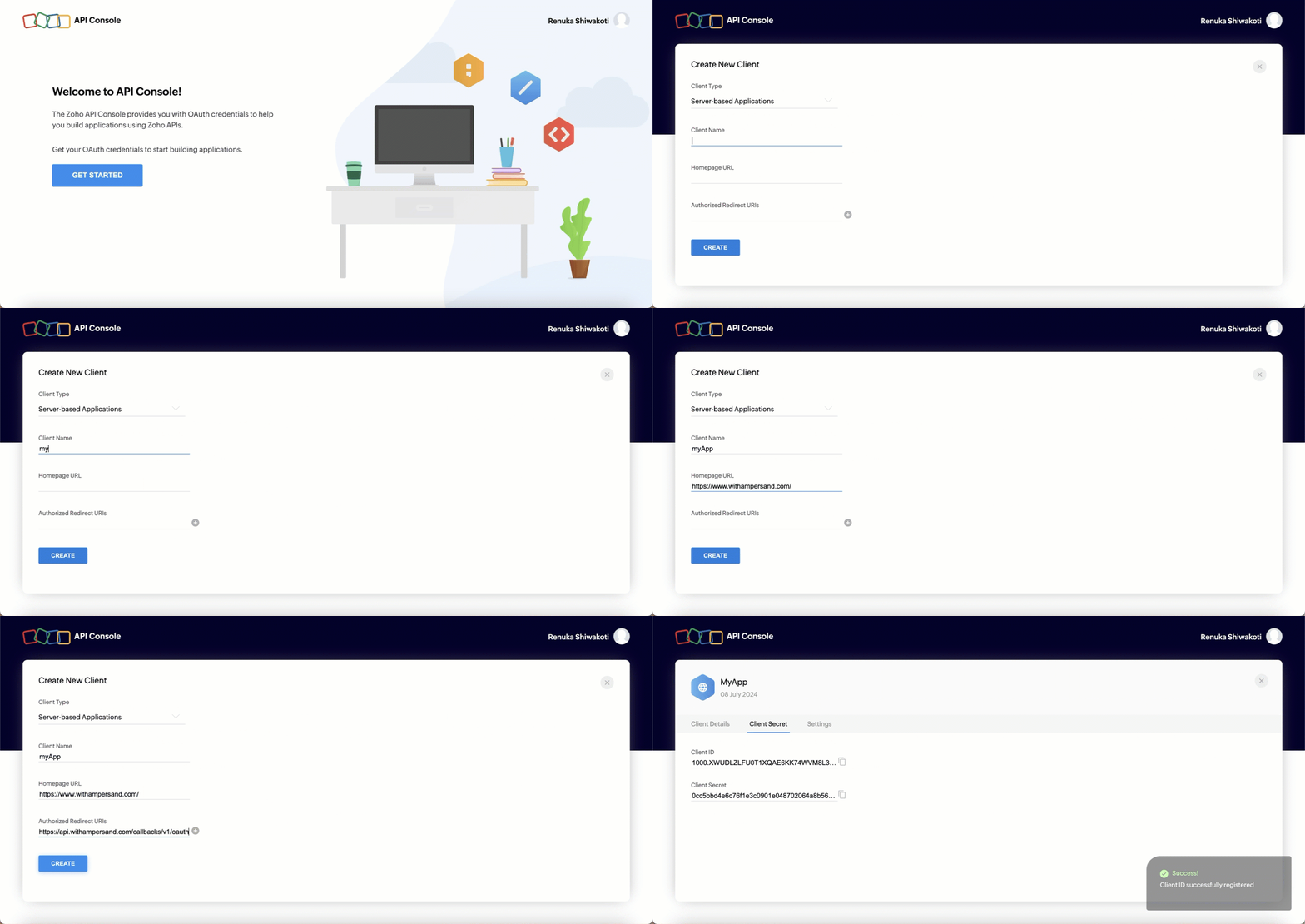
1. Log in to the [Zoho API Console Account](https://api-console.zoho.com/) using your Zoho account.
2. Click **Get Started** to create your first app. If you have already created an application, click **Add Client** to create a new app.
3. Select **Server-based Applications**.
4. Enter the following details:
   * **Client Name**: Name of the client app
   * **Homepage URL**: The home page URL of your app
   * **Authorized Redirect URIs**: The Ampersand redirect URL: `https://api.withampersand.com/callbacks/v1/oauth`
5. Click **Create**.

You'll see the details of your newly created application. Note the **Client ID** and **Client Secret** keys as they are necessary for connecting your app to Ampersand.

<img src="https://mintcdn.com/ampersand-24eb5c1a-rajatspawar-eng-4113-slack-docs/un5xUus2IUnmaub6/images/provider-guides/8dcf7de-zohocrm1.gif?s=8bf7f24e0d28c4eb8ca762a261efe19d" alt="Alt text" width="1440" height="680" data-path="images/provider-guides/8dcf7de-zohocrm1.gif" />

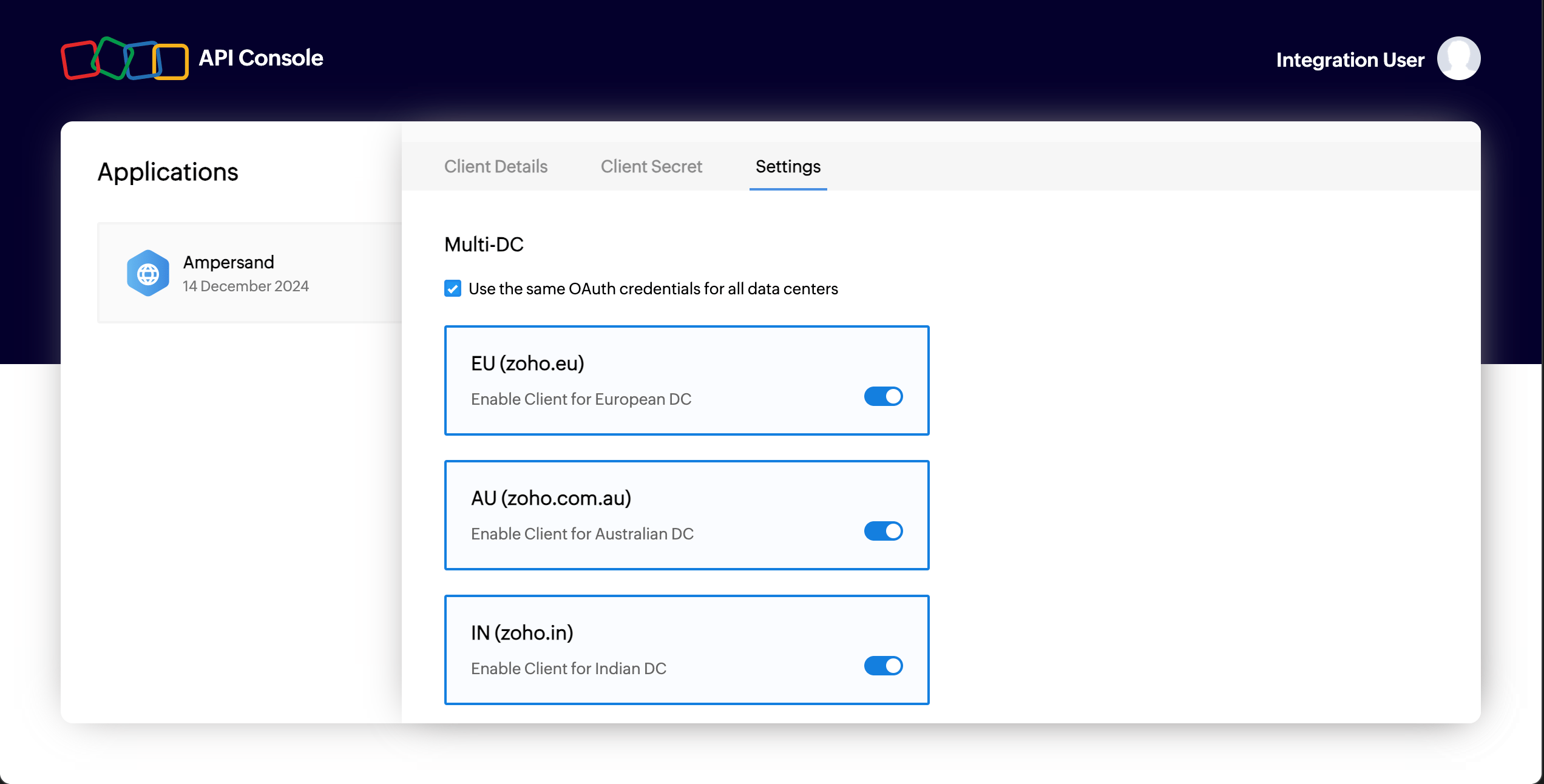
6. Select the checkbox "Use the same OAuth credentials for all data centers" in the settings tab. Also toggle all regions where you expect to have customers.
   <img src="https://mintcdn.com/ampersand-24eb5c1a-rajatspawar-eng-4113-slack-docs/d1LElXqsOd-vqxfp/images/provider-guides/zoho-region.png?fit=max&auto=format&n=d1LElXqsOd-vqxfp&q=85&s=844c23e46e84d870928e08bff15fb21e" alt="Toggle regions" width="2544" height="1292" data-path="images/provider-guides/zoho-region.png" />

## Add Your Zoho App Info to Ampersand

1. Log in to your [Ampersand Dashboard](https://dashboard.withampersand.com).
2. Select the project where you want to create a Zoho integration.

   <img src="https://mintcdn.com/ampersand-24eb5c1a-rajatspawar-eng-4113-slack-docs/NKlsuHwWjwWGp838/images/provider-guides/dd47b7a-Ampersand.png?fit=max&auto=format&n=NKlsuHwWjwWGp838&q=85&s=c76bfad5403f5cc9018cdfbc326f67dc" alt="Alt text" width="2244" height="442" data-path="images/provider-guides/dd47b7a-Ampersand.png" />
3. Select **Provider apps**.
4. Select **Zoho** from the **Provider** list.
5. Enter the previously obtained **Client ID** in the **Client ID** field and the **Client Secret** in the **Client Secret** field.
6. In the **Scopes** field, enter the list of desired scopes for your integration. We recommend the following scopes. If you want more granular scopes, please refer to the [Zoho documentation](https://www.zoho.com/accounts/protocol/oauth/scope.html) for syntax.

**Zoho CRM:**

```
ZohoCRM.modules.ALL
ZohoCRM.settings.ALL
// Additional scope required for Subscribe Actions
ZohoCRM.notifications.ALL
```

**Zoho Desk:**

```
Desk.basic.READ 
Desk.settings.ALL 
```

**Zoho Mail:**

```
ZohoMail.accounts.ALL
ZohoMail.folders.ALL
ZohoMail.tags.ALL
ZohoMail.messages.ALL
ZohoMail.tasks.ALL
ZohoMail.notes.ALL
ZohoMail.links.ALL
```

In case you are using **Subscribe** action, additional scope is required

```
ZohoCRM.notifications.ALL
```

7. Click **Save changes**.

## Customer Guide

The [Zoho Customer Guide](/customer-guides/zoho) can be shared with your customers to help them successfully use your integration.

## List on Zoho Marketplace

The final step, which is optional, is to list your application on the Zoho Marketplace. Follow the steps below to list your application:

1. Sign up and create a company profile on the [Zoho Marketplace](https://marketplace.zoho.com/home).
2. Click on the profile icon on the home page and select **Partner Console**.
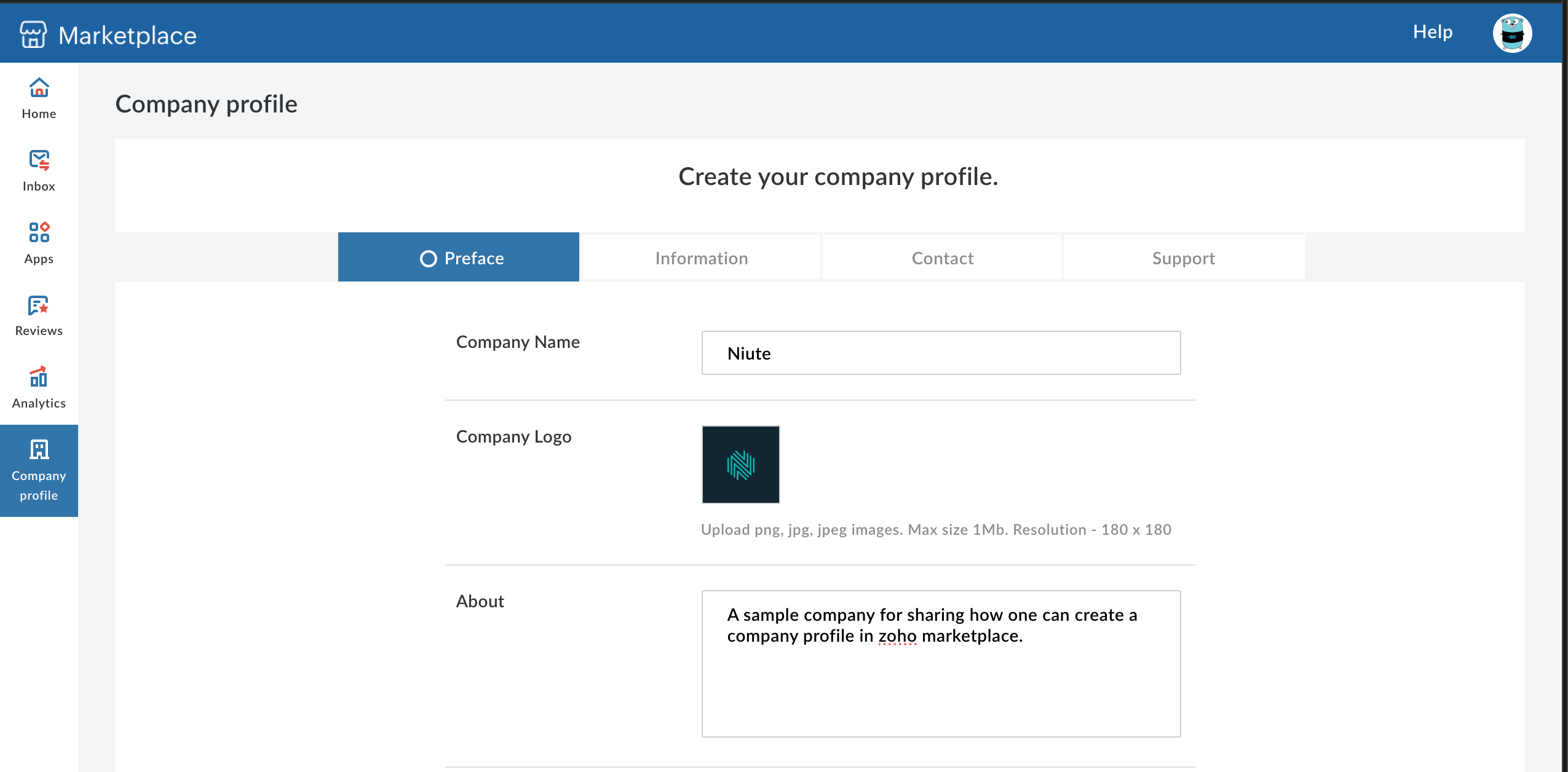
3. Select **Company Profile** on the left panel.
4. Provide your company details. Note that these are your own company's details, not Ampersand's.
   <img src="https://mintcdn.com/ampersand-24eb5c1a-rajatspawar-eng-4113-slack-docs/d1LElXqsOd-vqxfp/images/provider-guides/zoho-cp.png?fit=max&auto=format&n=d1LElXqsOd-vqxfp&q=85&s=dd340826823f3a815b72c80f2aeada21" alt="Zoho marketplace" width="2550" height="1256" data-path="images/provider-guides/zoho-cp.png" />
5. After successful registration, go to **Apps** on the left sidebar and click **Submit App**.
6. Complete the process by adding your app's details and submitting it.